Paste tmux Scrollback by Typing the Words You Remember
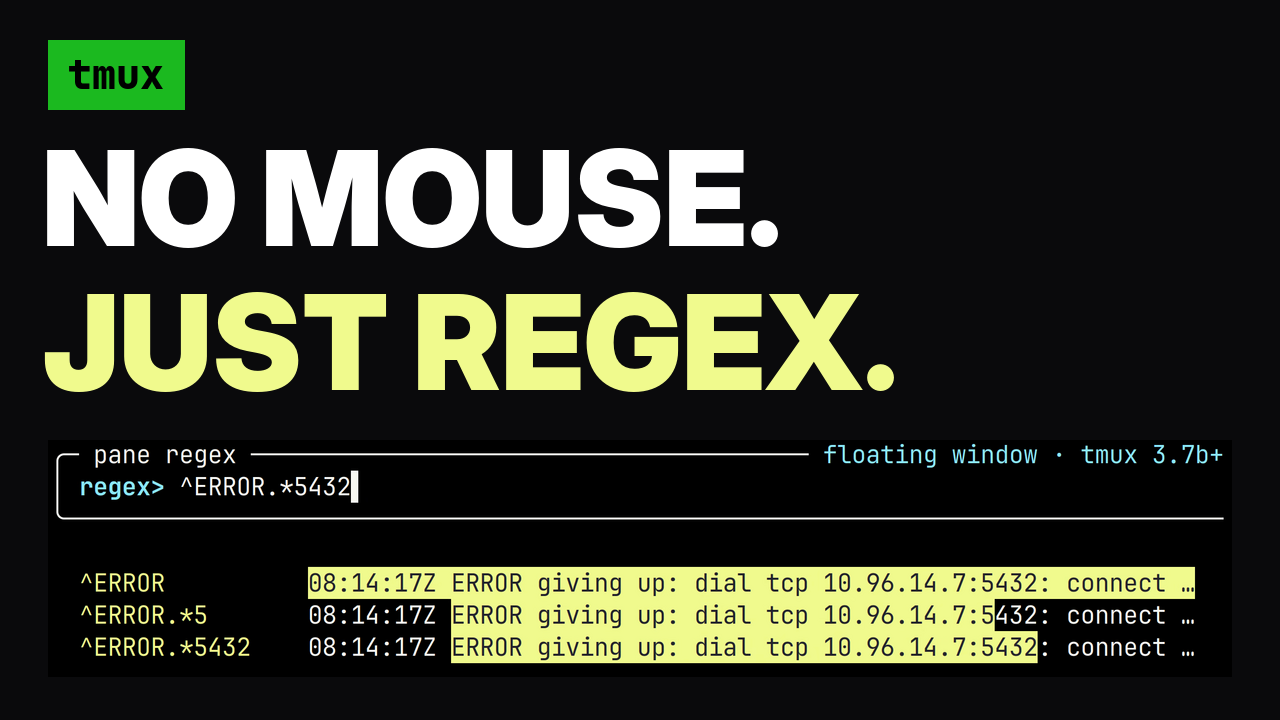
The text you need next is usually already on your screen. A pod name three commands back, the error string you want to search for, a URL a tool printed, the long flag you typed twenty minutes ago. Getting it into your current prompt means reaching for the mouse, and the mouse gets it wrong: a soft-wrapped line comes back with a newline in the middle, and a newline in a shell paste runs the command. This post covers a tmux plugin that selects the range by the words you remember, shows you the selection in the real pane while you type, and pastes it without submitting it.
What the mouse and copy-mode each cost you
Mouse selection has no idea where a logical line begins. tmux wraps a long command across three display rows, you drag across all three, and you paste something with two line breaks in it. In a shell that is not a paste, it is three commands.
Copy-mode is precise and it takes you out of the pane. You press prefix, search backwards, move to the start, begin selection, move to the end, copy, quit, then paste. Every step is a keystroke you have to plan, and you are no longer looking at the prompt you were writing.
Shell history search only covers commands you typed. It cannot reach the output those commands produced, which is where most of the text you want to reuse lives.
Typing the landmarks
You press prefix + R, a small popup opens, and you type the parts you remember. The selectors are regular expressions with a few shorthands for prose and terminal output.
| Query | Selection |
|---|---|
^start\3f, | Through the third comma |
^start\2tout | Stops before the second out and the whitespace ahead of it |
^start.*stop\2 | Through the second stop |
^start.*stop\2t | Stops before the second stop |
^\u | Newest URL, with Up to visit older ones |
^github\u | Newest URL containing github |
^word$ | Latest logical line containing word |
^start.*end | From start downward through the first end |
^start$$ | From start through that logical line's last visible character |
^start.*end$$ | Through the last visible character on the ending line |
^start\ss | Through the first ., ?, or ! |
^word\l | The whole logical line holding word, like vim V |
^word\p | The whole paragraph holding word, like vim vip |
^start\zsword | Selects from word, with start matched as context |
^word\zeend | Selects word, with end matched but left out |
^price\$ | A literal final dollar sign |
Up walks to an older occurrence, Down to a newer one. Enter or Tab pastes. Ctrl+Y copies the selection to the clipboard instead, through tmux's OSC 52 path. Your terminal must allow clipboard writes; no clipboard helper is needed. Esc closes the popup without pasting. When launched by an inline text expander, cancellation also removes the trigger and recovered query text.
Count the word or punctuation you need
The f and t motions take a count and a literal target. ^start\3f, includes the third comma; ^start\3t, stops before it. Leave out the count for the first occurrence. Unlike vim's single-character motions, the target can be a whole word: ^change\2fout reaches the second out. Each hop stops at the nearest target. Writing (out){2} in a regex would instead ask for outout.
If you already typed a landmark range, append the count: ^start.*stop\2. You can change the final digit without moving back through the query. Only the hop after the last .* or .+ repeats, and its target remains a regex. For example, ^start.*(stop|end)\3 reaches the third occurrence of either word. A period is literal in \2f., but needs escaping in a regex landmark.
Counts preserve valid backreferences. If your query has two capture groups, \2 still refers to the second group. A trailing count applies only where Python would reject that group reference. A bare .+ stays greedy; adding a count, as in ^start.+stop\1, makes that hop lazy.
Copy a URL out of scrollback
^\u selects the newest URL. Up walks to older URLs, and ^github\u filters them to those containing github. Ctrl+Y copies the selected URL; Enter pastes it into the source pane.
The selector recognizes scheme:// URLs and trims trailing sentence punctuation and unmatched closing brackets. In (see https://example.com/a_(b))., it selects https://example.com/a_(b). Balanced brackets within the URL stay intact, and soft wrapping does not split the copied address.
The feedback lives in the pane, not the popup
The popup shows your query and a three-line legend with the controls and shortcuts. The selection is painted in the source pane using tmux's own search highlight and copy-mode selection styles, so what you see is the real text in its real place, wrapped the way the terminal wrapped it.
The current match gets an exact selection, including single words, single characters, and ranges whose selected text starts with a regex operator such as .*. Other nearby matches stay highlighted so you can see where Up and Down will land. For a multiline match, the hint paints its first line. With \zs and \ze, context can appear in the search highlight, but only the selected range is copied or pasted.
These hints have a size limit: the plugin keeps the nearest matches within a 4 KB search-pattern budget to fit tmux's command limit. Navigation still searches all retained history.
That choice is what makes the range easy to trust. A preview inside the popup would be a copy of the text, reflowed to a different width, and you would have to decide whether it matched the thing you were looking at. Here the thing you are looking at is the answer.
The selection also survives refinement. Add another character to the query and the highlight moves rather than resetting, so you can narrow a range by watching it shrink.
How it works
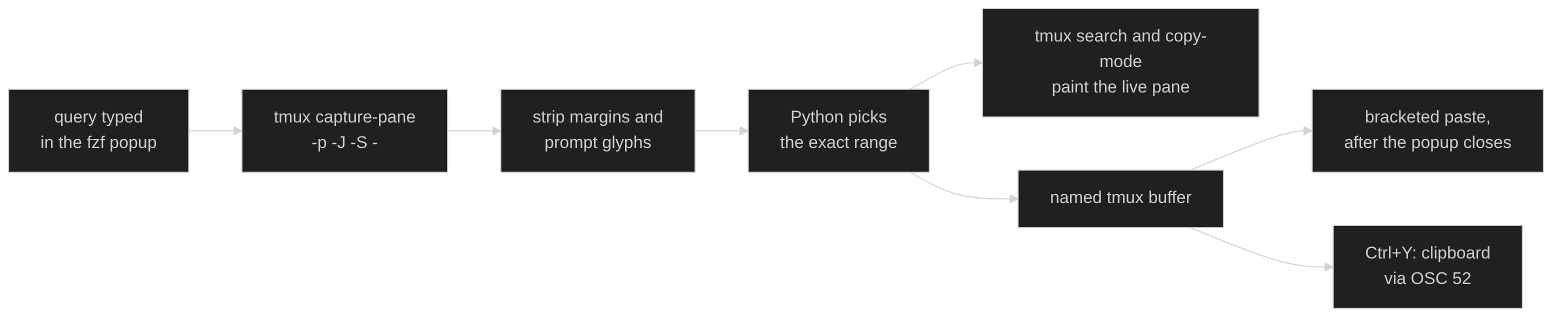
The script captures the whole retained history with tmux capture-pane -p -J -S -, so tmux's history-limit decides how far back a query can reach. The -J is what joins tmux's soft wraps back into logical lines, so a command that occupies three display rows is one line to the matcher, and selecting it gives you one line back.
Captured text carries terminal decoration that no one wants in a paste. A cleanup pass strips leading margins, including the • and › bullets a picker draws and the ● and ⎿ gutter an agent CLI draws down the left of its own output, and removes Unicode private-use characters with the space that usually follows them. Those are the glyphs a Nerd Font prompt draws, and without this pass a range starting at a prompt line would paste an invisible icon into your shell. Indentation is recorded per line rather than discarded, so an indented YAML block pastes with the shape it had on screen. Only the whitespace before the first selected character is left out.
Python then matches against the cleaned text and computes the exact source range. Rendering that range is handed back to tmux: the plugin drives send-keys -X with tmux's native search and begin-selection, so the highlight is drawn by the same code that draws it when you search by hand.
Once the selection stops, another native search paints the nearby matches without clearing it. That search uses literal text from the matches Python found, because tmux's search cannot express the plugin's lazy hops, selection markers, or multiline ranges.
The paste that never submits
Accepting writes the match to a named tmux buffer and delivers it with paste-buffer -p. The -p is the whole point. Without it, tmux replays the buffer as keystrokes, and a multiline range means every newline arrives as Enter, which submits each line as a command. With it, the text is wrapped in bracketed-paste markers, and your shell or editor treats it as inserted text.
Delivery is also deferred by a fraction of a second, because the paste has to land after the popup closes and the target pane has focus again:
tmux run-shell -b "sleep 0.15; tmux paste-buffer -p -b '$buffer' -t '$target' -d"
The text arrives at your cursor. You still have to press Enter yourself, which is the correct default for anything assembled out of old output.
Gotchas worth knowing
The first .* in a landmark range stops at the first viable ending locator, scanning downward. If you write ^ERROR.*retry and the pane has three retries under that error, you get the range to the first one. Press Up to walk to an older occurrence of the whole match.
Matches are case-insensitive by default, and the pane highlight follows tmux's smart case, so a lowercase query lights up every case variant. Put \C in front of the locator to make a query case-sensitive: ^\Cpython$$ selects from lowercase python through its line end. tmux has no case-sensitive switch of its own, so for a \C query the plugin appends an impossible uppercase branch to the native search pattern, which turns smart case off without adding a match.
A straight apostrophe matches a smart one. Typing don't builds don['’]t internally, so prose copied from a rendered document still matches what you can type on a keyboard.
Install
With TPM:
set -g @plugin 'Piotr1215/tmux-pane-regex'
Or clone it and load it near the end of .tmux.conf:
run-shell '~/.tmux/plugins/tmux-pane-regex/tmux-pane-regex.tmux'
It needs tmux 3.7b or newer, Python 3.10 or newer, and fzf.
Configure
The key is read before the plugin binds it, so set it first:
set -g @pane-regex-key 'P'
run-shell '~/.tmux/plugins/tmux-pane-regex/tmux-pane-regex.tmux'
The plugin publishes its own path as @pane-regex-script. An external text expander can read that option and call the script directly, passing its trigger length so the trigger characters get erased before the paste:
"$(tmux show-option -gqv @pane-regex-script)" 3
The tmux binding passes --pane '#{pane_id}' and needs no X11 focus detection. Only the global expander launcher depends on xdotool.